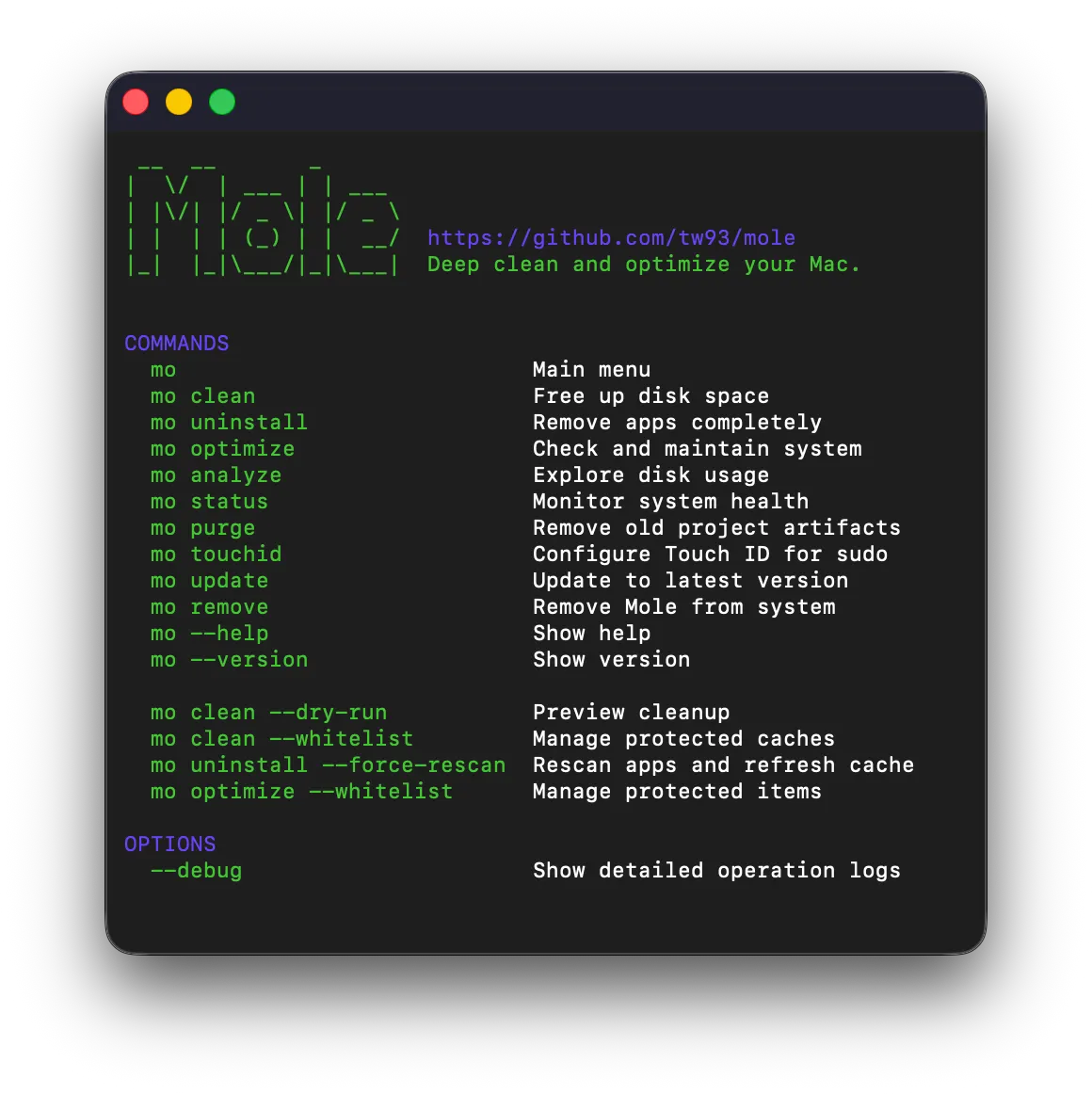
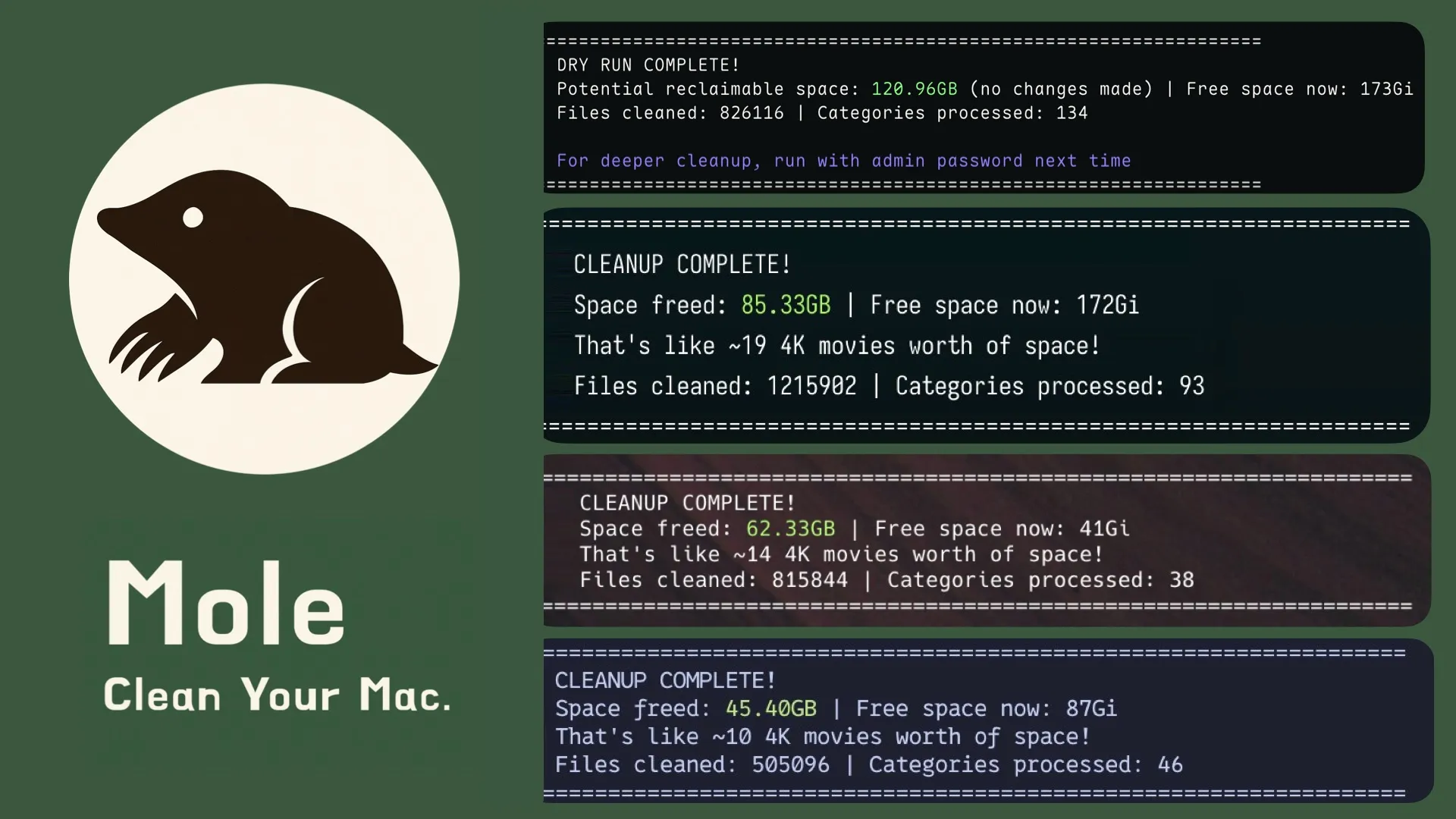
A few days ago I discovered Mole, an open-source tool created by the great tw93, who has several well-known repositories, including Pake.
It’s a simple, free, open-source alternative to clean/optimize your Mac.
I’d say it’s aimed at developers or people who are more comfortable tinkering, since the average Mac user probably won’t get much out of it—or simply won’t even know what they’re looking at.
But anyway, all its functions and features are in the README, so I’m just going to focus on what caught my attention:
1) Safety and configuration
Before doing anything, it gives you the option to check whether what it’s going to delete makes sense to you or not:
dry-runto preview before deletingdebugfor diagnosticswhitelistto exclude things you don’t want to touch
My personal recommendation: first run -dry-run, and then mo clean.
2) App uninstaller
Better than the typical thing Apple recommends (drag the app to the Trash and empty it), since it doesn’t just delete the app—it also targets caches, prefs, launch agents… all the leftovers apps leave behind.
3) Permissions and privileges (important)
Since it runs from the terminal, it requests several system permissions in order to scan and clean certain protected locations. I haven’t found much information about the full set of permissions it needs and why (since these are features of the more recent versions of macOS), but I’ve collected the ones it asked me for and what I think it needs them for:
Access to protected folders
The disk analysis feature lets it explore space usage in user directories (for example, Documents, Desktop, etc.). To show how much space files take up or delete them manually, Mole needs to be able to list their contents. This permission ensures it can include those folders in its space analysis (e.g., detecting very large or old files).
Access to iCloud Drive / Apple Music
It cleans caches associated with iCloud. Specifically, it deletes temporary files from the CloudDocs service and iCloud’s bird daemon. It also includes Apple Music’s cache in its cleanup—for example artwork/album covers caches or other temporary data the app stores on your system.
Access to Apps data
This permission is a bit vague, but I think it asks for it because Mole looks for installed applications so it can uninstall them along with their leftovers. To do that, it scans typical app locations, including /Applications and ~/Applications(global and per-user), as well as Homebrew paths or projects.
Access to System Events (Automation)
It uses AppleScript (via System Events) for certain tasks. Specifically, it queries identifiers of running applications via an AppleScript. This helps it, for example, know which apps are currently open before trying to uninstall them or clean their files, avoiding issues.
Personal recommendation: I would only grant permissions for Apps data and System Events, since those are the ones that affect its core functionality. The others (iCloud Drive, Apple Music, and protected folders) don’t feel especially relevant for how I’d use it, since they aren’t places where I really want to run cleanups or “optimize” things.
⚠️ NOTE: you’re not giving those permissions to Mole, but to the Terminal, which means other programs you run from the terminal will have the same permissions.
Who it’s for (and who it’s not)
I’d recommend it to:
- people who prefer simple tools and don’t mind not having a UI
- those who want control
I wouldn’t recommend it to:
- anyone who wants “install and done”
- anyone who doesn’t want to think about what’s being deleted
- anyone who gets overwhelmed by permissions or TUI/CLI-style tools
For now, I’m going to use it as a complementary tool—not something I run every day, but for the occasional cleanup. Below I’m leaving the installation and some screenshots of what the TUI looks like and what it can do.
Quick install (if you want to try it)
It’s not installed via the App Store or a typical installer, but directly via curl, or—my preferred option—via Homebrew:
brew install tw93/tap/mole
Once installed, you can open its TUI with: mole / mol
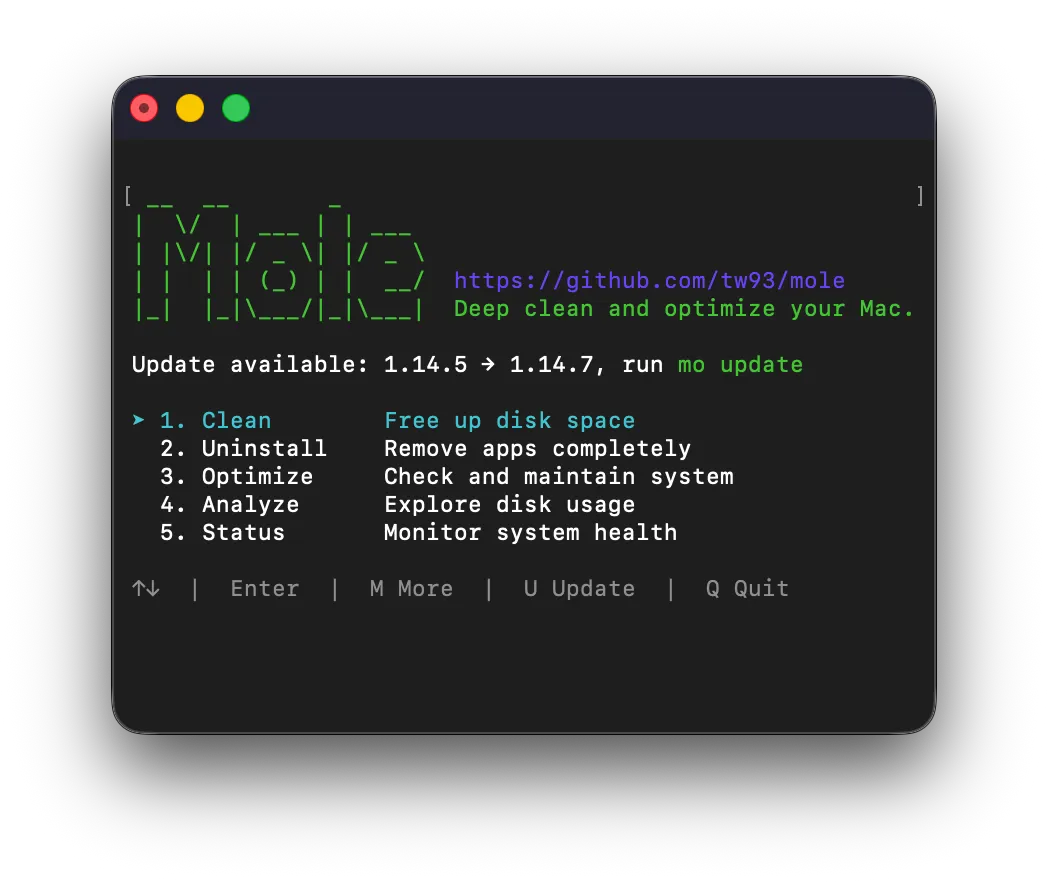
You can see the commands with: mo —help